'%3e%3cpath%20d='M36.0017%200H0.0020752V24H36.0017V0Z'%20fill='%23F0F0F0'/%3e%3cpath%20d='M36.0017%200H0.0020752V1.88998H36.0017V0Z'%20fill='%23D80027'/%3e%3cpath%20d='M36.0017%203.59996H0.0020752V5.48994H36.0017V3.59996Z'%20fill='%23D80027'/%3e%3cpath%20d='M0.0020752%207.19992H36.0017V9.0899H0.0020752V7.19992Z'%20fill='%23D80027'/%3e%3cpath%20d='M36.0017%2011.0249H0.0020752V12.9149H36.0017V11.0249Z'%20fill='%23D80027'/%3e%3cpath%20d='M0.0020752%2014.6248H36.0017V16.5148H0.0020752V14.6248Z'%20fill='%23D80027'/%3e%3cpath%20d='M36.0017%2018.2248H0.0020752V20.1148H36.0017V18.2248Z'%20fill='%23D80027'/%3e%3cpath%20d='M0.0020752%2022.0498H36.0017V23.9397H0.0020752V22.0498Z'%20fill='%23D80027'/%3e%3cpath%20d='M18.0019%200H0.0020752V12.9231H18.0019V0Z'%20fill='%232E52B2'/%3e%3cpath%20d='M1.41772%200.940515L1.57716%200.449995L1.73636%200.940515H2.25205L1.83477%201.24353L1.9942%201.73397L1.57716%201.43096L1.15987%201.73397L1.31927%201.24353L0.902065%200.940515H1.41772Z'%20fill='%23F0F0F0'/%3e%3cpath%20d='M4.27225%200.940515L4.43169%200.449995L4.59089%200.940515H5.10658L4.6893%201.24353L4.84874%201.73397L4.43169%201.43096L4.01441%201.73397L4.1738%201.24353L3.7566%200.940515H4.27225Z'%20fill='%23F0F0F0'/%3e%3cpath%20d='M7.28622%200.449995L7.12679%200.940515H6.61113L7.02834%201.24353L6.86894%201.73397L7.28622%201.43096L7.70327%201.73397L7.54384%201.24353L7.96112%200.940515H7.44542L7.28622%200.449995Z'%20fill='%23F0F0F0'/%3e%3cpath%20d='M9.98133%200.940515L10.1408%200.449995L10.3%200.940515H10.8157L10.3984%201.24353L10.5578%201.73397L10.1408%201.43096L9.72349%201.73397L9.88288%201.24353L9.46568%200.940515H9.98133Z'%20fill='%23F0F0F0'/%3e%3cpath%20d='M13.277%200.449995L13.1176%200.940515H12.6019L13.0191%201.24353L12.8597%201.73397L13.277%201.43096L13.6941%201.73397L13.5346%201.24353L13.9519%200.940515H13.4362L13.277%200.449995Z'%20fill='%23F0F0F0'/%3e%3cpath%20d='M16.2676%200.940515L16.427%200.449995L16.5862%200.940515H17.1019L16.6846%201.24353L16.844%201.73397L16.427%201.43096L16.0097%201.73397L16.1691%201.24353L15.7519%200.940515H16.2676Z'%20fill='%23F0F0F0'/%3e%3cpath%20d='M1.57716%203.12895L1.41772%203.61947H0.902065L1.31927%203.92249L1.15987%204.41293L1.57716%204.10992L1.9942%204.41293L1.83477%203.92249L2.25205%203.61947H1.73636L1.57716%203.12895Z'%20fill='%23F0F0F0'/%3e%3cpath%20d='M4.27225%203.61947L4.43169%203.12895L4.59089%203.61947H5.10658L4.6893%203.92249L4.84874%204.41293L4.43169%204.10992L4.01441%204.41293L4.1738%203.92249L3.7566%203.61947H4.27225Z'%20fill='%23F0F0F0'/%3e%3cpath%20d='M7.28622%203.12895L7.12679%203.61947H6.61113L7.02834%203.92249L6.86894%204.41293L7.28622%204.10992L7.70327%204.41293L7.54384%203.92249L7.96112%203.61947H7.44542L7.28622%203.12895Z'%20fill='%23F0F0F0'/%3e%3cpath%20d='M9.98133%203.61947L10.1408%203.12895L10.3%203.61947H10.8157L10.3984%203.92249L10.5578%204.41293L10.1408%204.10992L9.72349%204.41293L9.88288%203.92249L9.46568%203.61947H9.98133Z'%20fill='%23F0F0F0'/%3e%3cpath%20d='M13.277%203.12895L13.1176%203.61947H12.6019L13.0191%203.92249L12.8597%204.41293L13.277%204.10992L13.6941%204.41293L13.5346%203.92249L13.9519%203.61947H13.4362L13.277%203.12895Z'%20fill='%23F0F0F0'/%3e%3cpath%20d='M16.2676%203.61947L16.427%203.12895L16.5862%203.61947H17.1019L16.6846%203.92249L16.844%204.41293L16.427%204.10992L16.0097%204.41293L16.1691%203.92249L15.7519%203.61947H16.2676Z'%20fill='%23F0F0F0'/%3e%3cpath%20d='M1.57716%205.80791L1.41772%206.29843H0.902065L1.31927%206.60145L1.15987%207.09189L1.57716%206.78888L1.9942%207.09189L1.83477%206.60145L2.25205%206.29843H1.73636L1.57716%205.80791Z'%20fill='%23F0F0F0'/%3e%3cpath%20d='M4.27225%206.29843L4.43169%205.80791L4.59089%206.29843H5.10658L4.6893%206.60145L4.84874%207.09189L4.43169%206.78888L4.01441%207.09189L4.1738%206.60145L3.7566%206.29843H4.27225Z'%20fill='%23F0F0F0'/%3e%3cpath%20d='M7.28622%205.80791L7.12679%206.29843H6.61113L7.02834%206.60145L6.86894%207.09189L7.28622%206.78888L7.70327%207.09189L7.54384%206.60145L7.96112%206.29843H7.44542L7.28622%205.80791Z'%20fill='%23F0F0F0'/%3e%3cpath%20d='M9.98133%206.29843L10.1408%205.80791L10.3%206.29843H10.8157L10.3984%206.60145L10.5578%207.09189L10.1408%206.78888L9.72349%207.09189L9.88288%206.60145L9.46568%206.29843H9.98133Z'%20fill='%23F0F0F0'/%3e%3cpath%20d='M13.277%205.80791L13.1176%206.29843H12.6019L13.0191%206.60145L12.8597%207.09189L13.277%206.78888L13.6941%207.09189L13.5346%206.60145L13.9519%206.29843H13.4362L13.277%205.80791Z'%20fill='%23F0F0F0'/%3e%3cpath%20d='M16.2676%206.29843L16.427%205.80791L16.5862%206.29843H17.1019L16.6846%206.60145L16.844%207.09189L16.427%206.78888L16.0097%207.09189L16.1691%206.60145L15.7519%206.29843H16.2676Z'%20fill='%23F0F0F0'/%3e%3cpath%20d='M1.57716%208.48687L1.41772%208.97739H0.902065L1.31927%209.28041L1.15987%209.77085L1.57716%209.46784L1.9942%209.77085L1.83477%209.28041L2.25205%208.97739H1.73636L1.57716%208.48687Z'%20fill='%23F0F0F0'/%3e%3cpath%20d='M4.27225%208.97739L4.43169%208.48687L4.59089%208.97739H5.10658L4.6893%209.28041L4.84874%209.77085L4.43169%209.46784L4.01441%209.77085L4.1738%209.28041L3.7566%208.97739H4.27225Z'%20fill='%23F0F0F0'/%3e%3cpath%20d='M7.28622%208.48687L7.12679%208.97739H6.61113L7.02834%209.28041L6.86894%209.77085L7.28622%209.46784L7.70327%209.77085L7.54384%209.28041L7.96112%208.97739H7.44542L7.28622%208.48687Z'%20fill='%23F0F0F0'/%3e%3cpath%20d='M9.98133%208.97739L10.1408%208.48687L10.3%208.97739H10.8157L10.3984%209.28041L10.5578%209.77085L10.1408%209.46784L9.72349%209.77085L9.88288%209.28041L9.46568%208.97739H9.98133Z'%20fill='%23F0F0F0'/%3e%3cpath%20d='M13.277%208.48687L13.1176%208.97739H12.6019L13.0191%209.28041L12.8597%209.77085L13.277%209.46784L13.6941%209.77085L13.5346%209.28041L13.9519%208.97739H13.4362L13.277%208.48687Z'%20fill='%23F0F0F0'/%3e%3cpath%20d='M16.2676%208.97739L16.427%208.48687L16.5862%208.97739H17.1019L16.6846%209.28041L16.844%209.77085L16.427%209.46784L16.0097%209.77085L16.1691%209.28041L15.7519%208.97739H16.2676Z'%20fill='%23F0F0F0'/%3e%3cpath%20d='M1.57716%2011.1658L1.41772%2011.6564H0.902065L1.31927%2011.9594L1.15987%2012.4498L1.57716%2012.1468L1.9942%2012.4498L1.83477%2011.9594L2.25205%2011.6564H1.73636L1.57716%2011.1658Z'%20fill='%23F0F0F0'/%3e%3cpath%20d='M4.27225%2011.6564L4.43169%2011.1658L4.59089%2011.6564H5.10658L4.6893%2011.9594L4.84874%2012.4498L4.43169%2012.1468L4.01441%2012.4498L4.1738%2011.9594L3.7566%2011.6564H4.27225Z'%20fill='%23F0F0F0'/%3e%3cpath%20d='M7.28622%2011.1658L7.12679%2011.6564H6.61113L7.02834%2011.9594L6.86894%2012.4498L7.28622%2012.1468L7.70327%2012.4498L7.54384%2011.9594L7.96112%2011.6564H7.44542L7.28622%2011.1658Z'%20fill='%23F0F0F0'/%3e%3cpath%20d='M9.98133%2011.6564L10.1408%2011.1658L10.3%2011.6564H10.8157L10.3984%2011.9594L10.5578%2012.4498L10.1408%2012.1468L9.72349%2012.4498L9.88288%2011.9594L9.46568%2011.6564H9.98133Z'%20fill='%23F0F0F0'/%3e%3cpath%20d='M13.277%2011.1658L13.1176%2011.6564H12.6019L13.0191%2011.9594L12.8597%2012.4498L13.277%2012.1468L13.6941%2012.4498L13.5346%2011.9594L13.9519%2011.6564H13.4362L13.277%2011.1658Z'%20fill='%23F0F0F0'/%3e%3cpath%20d='M16.2676%2011.6564L16.427%2011.1658L16.5862%2011.6564H17.1019L16.6846%2011.9594L16.844%2012.4498L16.427%2012.1468L16.0097%2012.4498L16.1691%2011.9594L15.7519%2011.6564H16.2676Z'%20fill='%23F0F0F0'/%3e%3cpath%20d='M2.92714%207.19992L2.76771%207.69044H2.25205L2.66925%207.99345L2.50986%208.4839L2.92714%208.18088L3.34419%208.4839L3.18476%207.99345L3.60204%207.69044H3.08634L2.92714%207.19992Z'%20fill='%23F0F0F0'/%3e%3cpath%20d='M5.62224%207.69044L5.78167%207.19992L5.94088%207.69044H6.45657L6.03929%207.99345L6.19872%208.4839L5.78167%208.18088L5.36439%208.4839L5.52379%207.99345L5.10658%207.69044H5.62224Z'%20fill='%23F0F0F0'/%3e%3cpath%20d='M8.63621%207.19992L8.47677%207.69044H7.96112L8.37832%207.99345L8.21893%208.4839L8.63621%208.18088L9.05326%208.4839L8.89382%207.99345L9.3111%207.69044H8.79541L8.63621%207.19992Z'%20fill='%23F0F0F0'/%3e%3cpath%20d='M11.3313%207.69044L11.4908%207.19992L11.65%207.69044H12.1656L11.7484%207.99345L11.9078%208.4839L11.4908%208.18088L11.0735%208.4839L11.2329%207.99345L10.8157%207.69044H11.3313Z'%20fill='%23F0F0F0'/%3e%3cpath%20d='M14.627%207.19992L14.4676%207.69044H13.9519L14.3691%207.99345L14.2097%208.4839L14.627%208.18088L15.0441%208.4839L14.8846%207.99345L15.3019%207.69044H14.7862L14.627%207.19992Z'%20fill='%23F0F0F0'/%3e%3cpath%20d='M2.76771%2010.3904L2.92714%209.89989L3.08634%2010.3904H3.60204L3.18476%2010.6934L3.34419%2011.1839L2.92714%2010.8809L2.50986%2011.1839L2.66925%2010.6934L2.25205%2010.3904H2.76771Z'%20fill='%23F0F0F0'/%3e%3cpath%20d='M5.78167%209.89989L5.62224%2010.3904H5.10658L5.52379%2010.6934L5.36439%2011.1839L5.78167%2010.8809L6.19872%2011.1839L6.03929%2010.6934L6.45657%2010.3904H5.94088L5.78167%209.89989Z'%20fill='%23F0F0F0'/%3e%3cpath%20d='M8.47677%2010.3904L8.63621%209.89989L8.79541%2010.3904H9.3111L8.89382%2010.6934L9.05326%2011.1839L8.63621%2010.8809L8.21893%2011.1839L8.37832%2010.6934L7.96112%2010.3904H8.47677Z'%20fill='%23F0F0F0'/%3e%3cpath%20d='M11.4908%209.89989L11.3313%2010.3904H10.8157L11.2329%2010.6934L11.0735%2011.1839L11.4908%2010.8809L11.9078%2011.1839L11.7484%2010.6934L12.1656%2010.3904H11.65L11.4908%209.89989Z'%20fill='%23F0F0F0'/%3e%3cpath%20d='M14.4676%2010.3904L14.627%209.89989L14.7862%2010.3904H15.3019L14.8846%2010.6934L15.0441%2011.1839L14.627%2010.8809L14.2097%2011.1839L14.3691%2010.6934L13.9519%2010.3904H14.4676Z'%20fill='%23F0F0F0'/%3e%3cpath%20d='M2.92714%204.49995L2.76771%204.99047H2.25205L2.66925%205.29348L2.50986%205.78393L2.92714%205.48091L3.34419%205.78393L3.18476%205.29348L3.60204%204.99047H3.08634L2.92714%204.49995Z'%20fill='%23F0F0F0'/%3e%3cpath%20d='M5.62224%204.99047L5.78167%204.49995L5.94088%204.99047H6.45657L6.03929%205.29348L6.19872%205.78393L5.78167%205.48091L5.36439%205.78393L5.52379%205.29348L5.10658%204.99047H5.62224Z'%20fill='%23F0F0F0'/%3e%3cpath%20d='M8.63621%204.49995L8.47677%204.99047H7.96112L8.37832%205.29348L8.21893%205.78393L8.63621%205.48091L9.05326%205.78393L8.89382%205.29348L9.3111%204.99047H8.79541L8.63621%204.49995Z'%20fill='%23F0F0F0'/%3e%3cpath%20d='M11.3313%204.99047L11.4908%204.49995L11.65%204.99047H12.1656L11.7484%205.29348L11.9078%205.78393L11.4908%205.48091L11.0735%205.78393L11.2329%205.29348L10.8157%204.99047H11.3313Z'%20fill='%23F0F0F0'/%3e%3cpath%20d='M14.627%204.49995L14.4676%204.99047H13.9519L14.3691%205.29348L14.2097%205.78393L14.627%205.48091L15.0441%205.78393L14.8846%205.29348L15.3019%204.99047H14.7862L14.627%204.49995Z'%20fill='%23F0F0F0'/%3e%3cpath%20d='M2.76771%202.2905L2.92714%201.79998L3.08634%202.2905H3.60204L3.18476%202.59351L3.34419%203.08395L2.92714%202.78094L2.50986%203.08395L2.66925%202.59351L2.25205%202.2905H2.76771Z'%20fill='%23F0F0F0'/%3e%3cpath%20d='M5.78167%201.79998L5.62224%202.2905H5.10658L5.52379%202.59351L5.36439%203.08395L5.78167%202.78094L6.19872%203.08395L6.03929%202.59351L6.45657%202.2905H5.94088L5.78167%201.79998Z'%20fill='%23F0F0F0'/%3e%3cpath%20d='M8.47677%202.2905L8.63621%201.79998L8.79541%202.2905H9.3111L8.89382%202.59351L9.05326%203.08395L8.63621%202.78094L8.21893%203.08395L8.37832%202.59351L7.96112%202.2905H8.47677Z'%20fill='%23F0F0F0'/%3e%3cpath%20d='M11.4908%201.79998L11.3313%202.2905H10.8157L11.2329%202.59351L11.0735%203.08395L11.4908%202.78094L11.9078%203.08395L11.7484%202.59351L12.1656%202.2905H11.65L11.4908%201.79998Z'%20fill='%23F0F0F0'/%3e%3cpath%20d='M14.4676%202.2905L14.627%201.79998L14.7862%202.2905H15.3019L14.8846%202.59351L15.0441%203.08395L14.627%202.78094L14.2097%203.08395L14.3691%202.59351L13.9519%202.2905H14.4676Z'%20fill='%23F0F0F0'/%3e%3c/g%3e%3cdefs%3e%3cclipPath%20id='clip0_1_286'%3e%3crect%20x='0.0020752'%20width='35.9996'%20height='24'%20rx='2'%20fill='white'/%3e%3c/clipPath%3e%3c/defs%3e%3c/svg%3e)
'%3e%3cpath%20d='M36.0028%200H0.0020752V24H36.0028V0Z'%20fill='%23F0F0F0'/%3e%3cpath%20d='M36.0028%200H0.0020752V7.99998H36.0028V0Z'%20fill='%23D80027'/%3e%3cpath%20d='M36.0028%2016.0002H0.0020752V24H36.0028V16.0002Z'%20fill='%23D80027'/%3e%3c/g%3e%3cdefs%3e%3cclipPath%20id='clip0_1_316'%3e%3crect%20x='0.0020752'%20width='36.0008'%20height='24'%20rx='2'%20fill='white'/%3e%3c/clipPath%3e%3c/defs%3e%3c/svg%3e)
'%3e%3cpath%20d='M0.0020752%200H36.0021V24H0.0020752V0Z'%20fill='%2310338C'/%3e%3cpath%20d='M8.91102%2015.2721L9.68145%2016.9171L11.4114%2016.5076L10.641%2018.1455L12.0348%2019.2805L10.2978%2019.6827L10.3048%2021.5073L8.91102%2020.3652L7.52425%2021.5073L7.53125%2019.6827L5.79429%2019.2805L7.18806%2018.1455L6.41063%2016.5076L8.14759%2016.9171L8.91102%2015.2721ZM27.1141%2018.4687L27.4783%2019.2517L28.3048%2019.0578L27.9336%2019.8408L28.599%2020.3795L27.7725%2020.5663V21.4427L27.1141%2020.8967L26.4488%2021.4427L26.4558%2020.5663L25.6293%2020.3795L26.2947%2019.8408L25.9235%2019.0578L26.7499%2019.2517L27.1141%2018.4687ZM22.5896%208.98653L22.9538%209.76953L23.7803%209.57557L23.4091%2010.3586L24.0744%2010.8973L23.248%2011.0913V11.9605L22.5896%2011.4145L21.9242%2011.9605L21.9312%2011.0913L21.0978%2010.8973L21.7632%2010.3586L21.392%209.57557L22.2184%209.76953L22.5896%208.98653ZM27.1141%202.50703L27.4783%203.29003L28.3048%203.09608L27.9336%203.87908L28.599%204.41784L27.7725%204.61179V5.48099L27.1141%204.93505L26.4488%205.48099L26.4558%204.61179L25.6293%204.41784L26.2947%203.87908L25.9235%203.09608L26.7499%203.29003L27.1141%202.50703ZM31.2114%207.22658L31.5756%208.00957L32.4021%207.81562L32.0309%208.59862L32.6962%209.13738L31.8698%209.32415V10.2005L31.2114%209.65459L30.546%2010.2005V9.32415L29.7196%209.13738L30.3849%208.59862L30.0137%207.81562L30.8402%208.00957L31.2114%207.22658ZM28.592%2011.9605L28.8791%2012.8728H29.8106L29.0542%2013.4331L29.3484%2014.3454L28.592%2013.7779L27.8355%2014.3454L28.1227%2013.4331L27.3733%2012.8728H28.3048L28.592%2011.9605Z'%20fill='white'/%3e%3cpath%20d='M17.932%200V2.19814L14.7733%204.0012H17.932V8.261H13.7927L17.932%2010.6172V12.2622H16.062L10.9141%209.32415V12.2622H7.01997V8.77103L0.898573%2012.2622H0.0020752V10.0641L3.16783%208.261H0.0020752V4.0012H4.14137L0.0020752%201.63783V0H1.87211L7.01997%202.93086V0H10.9141V3.49117L17.0425%200H17.932Z'%20fill='white'/%3e%3cpath%20d='M10.0877%200H7.84643V4.97815H0.0020752V7.27686H7.84643V12.2622H10.0877V7.27686H17.932V4.97815H10.0877V0Z'%20fill='%23D80027'/%3e%3cpath%20d='M10.9141%208.261L17.932%2012.2622L17.932%2011.1272L12.9032%208.261H10.9141Z'%20fill='%230052B4'/%3e%3cpath%20d='M10.9141%208.261L17.932%2012.2622L17.932%2011.1272L12.9032%208.261H10.9141Z'%20fill='white'/%3e%3cpath%20d='M10.9141%208.261L17.932%2012.2622L17.932%2011.1272L12.9032%208.261H10.9141ZM5.03787%208.261L0.0020752%2011.1272V12.2622L7.01997%208.261H5.03787Z'%20fill='%23D80027'/%3e%3cpath%20d='M7.01997%204.0012L0.0020752%200V1.12781L5.03787%204.0012H7.01997Z'%20fill='%230052B4'/%3e%3cpath%20d='M7.01997%204.0012L0.0020752%200V1.12781L5.03787%204.0012H7.01997Z'%20fill='white'/%3e%3cpath%20d='M7.01997%204.0012L0.0020752%200V1.12781L5.03787%204.0012H7.01997ZM12.9032%204.0012L17.932%201.12781V0L10.9141%204.0012H12.9032Z'%20fill='%23D80027'/%3e%3c/g%3e%3cdefs%3e%3cclipPath%20id='clip0_515_180'%3e%3crect%20x='0.0020752'%20width='36'%20height='24'%20rx='2'%20fill='white'/%3e%3c/clipPath%3e%3c/defs%3e%3c/svg%3e)
'%3e%3cpath%20d='M36.0017%200H0.0020752V23.9992H36.0017V0Z'%20fill='%23FFDA44'/%3e%3cpath%20d='M12.0017%200H0.0020752V23.9992L12.0017%2024V0Z'%20fill='black'/%3e%3cpath%20d='M36.0017%200H24.002V24L36.0017%2023.9992V0Z'%20fill='%23D80027'/%3e%3c/g%3e%3cdefs%3e%3cclipPath%20id='clip0_1_310'%3e%3crect%20x='0.0020752'%20width='35.9996'%20height='24'%20rx='2'%20fill='white'/%3e%3c/clipPath%3e%3c/defs%3e%3c/svg%3e)
'%3e%3cpath%20d='M36.0017%200H0.0020752V24H36.0017V0Z'%20fill='%23D80027'/%3e%3cpath%20d='M36.0017%200H0.0020752V7.99973H36.0017V0Z'%20fill='black'/%3e%3cpath%20d='M36.0017%2015.9995H0.0020752V24H36.0017V15.9995Z'%20fill='%23FFDA44'/%3e%3c/g%3e%3cdefs%3e%3cclipPath%20id='clip0_1_226'%3e%3crect%20x='0.0020752'%20width='35.9996'%20height='24'%20rx='2'%20fill='white'/%3e%3c/clipPath%3e%3c/defs%3e%3c/svg%3e)
'%3e%3cpath%20d='M36.0017%200H0.0020752V24H36.0017V0Z'%20fill='%23FFDA44'/%3e%3cpath%20d='M36.0017%200H0.0020752V7.99973H36.0017V0Z'%20fill='%23D80027'/%3e%3cpath%20d='M36.0017%2015.9995H0.0020752V24H36.0017V15.9995Z'%20fill='%23D80027'/%3e%3c/g%3e%3cdefs%3e%3cclipPath%20id='clip0_1_118'%3e%3crect%20x='0.0020752'%20width='35.9996'%20height='24'%20rx='2'%20fill='white'/%3e%3c/clipPath%3e%3c/defs%3e%3c/svg%3e)
'%3e%3cpath%20d='M36.001%200.000446307H0.0020752V24H36.001V0.000446307Z'%20fill='%23F0F0F0'/%3e%3cpath%20d='M36.001%2010.5V13.4996H12.9147V23.9996H9.9143V13.4996H0.0020752V10.5H9.9143V0H12.9147V10.5H36.001Z'%20fill='%232E52B2'/%3e%3c/g%3e%3cdefs%3e%3cclipPath%20id='clip0_1_238'%3e%3crect%20x='0.0020752'%20width='35.9989'%20height='24'%20rx='2'%20fill='white'/%3e%3c/clipPath%3e%3c/defs%3e%3c/svg%3e)
'%3e%3cpath%20d='M36.0017%200H0.0020752V24H36.0017V0Z'%20fill='%23F0F0F0'/%3e%3cpath%20d='M12.0017%200H0.0020752V24H12.0017V0Z'%20fill='%230052B4'/%3e%3cpath%20d='M36.0017%200H24.0021V24H36.0017V0Z'%20fill='%23D80027'/%3e%3c/g%3e%3cdefs%3e%3cclipPath%20id='clip0_1_232'%3e%3crect%20x='0.0020752'%20width='35.9996'%20height='24'%20rx='2'%20fill='white'/%3e%3c/clipPath%3e%3c/defs%3e%3c/svg%3e)
'%3e%3cpath%20d='M36.0013%200.000267786H0.0020752V24H36.0013V0.000267786Z'%20fill='%23F0F0F0'/%3e%3cpath%20d='M20.2516%200H15.7517V9.74974H0.0020752V14.2496H15.7517V23.9994H20.2516V14.2496H36.0013V9.74974H20.2516V0Z'%20fill='%23D80027'/%3e%3cpath%20d='M27.6898%2016.1732L36.0016%2020.791V16.1732H27.6898Z'%20fill='%230052B4'/%3e%3cpath%20d='M21.9148%2016.1732L36.0013%2024L36.0014%2021.7861L25.8982%2016.1732H21.9148Z'%20fill='%230052B4'/%3e%3cpath%20d='M32.2492%2023.9994L21.9148%2018.2575V23.9994H32.2492Z'%20fill='%230052B4'/%3e%3cpath%20d='M21.9148%2016.1732L36.0013%2024L36.0014%2021.7861L25.8982%2016.1732H21.9148Z'%20fill='%23F0F0F0'/%3e%3cpath%20d='M21.9148%2016.1732L36.0013%2024L36.0014%2021.7861L25.8982%2016.1732H21.9148Z'%20fill='%23D80027'/%3e%3cpath%20d='M6.35404%2016.173L0.0020752%2019.7019V16.173H6.35404Z'%20fill='%230052B4'/%3e%3cpath%20d='M14.0888%2017.168V23.9988H1.7944L14.0888%2017.168Z'%20fill='%230052B4'/%3e%3cpath%20d='M10.1053%2016.1732L0.0020752%2021.7861V24L14.0887%2016.1732H10.1053Z'%20fill='%23D80027'/%3e%3cpath%20d='M8.31388%207.82594L0.0020752%203.2082V7.82594H8.31388Z'%20fill='%230052B4'/%3e%3cpath%20d='M14.0887%207.82589L0.0020752%200.000267786V2.21297L10.1053%207.82589H14.0887Z'%20fill='%230052B4'/%3e%3cpath%20d='M3.75432%200L14.0888%205.74187V0H3.75432Z'%20fill='%230052B4'/%3e%3cpath%20d='M14.0887%207.82589L0.0020752%200.000267786V2.21297L10.1053%207.82589H14.0887Z'%20fill='%23F0F0F0'/%3e%3cpath%20d='M14.0887%207.82589L0.0020752%200.000267786V2.21297L10.1053%207.82589H14.0887Z'%20fill='%23D80027'/%3e%3cpath%20d='M29.6496%207.82585L36.0015%204.29695V7.82585H29.6496Z'%20fill='%230052B4'/%3e%3cpath%20d='M21.9148%206.83086V8.9262e-05H34.2091L21.9148%206.83086Z'%20fill='%230052B4'/%3e%3cpath%20d='M25.8982%207.82589L36.0014%202.21297L36.0013%200.000267786L21.9148%207.82589H25.8982Z'%20fill='%23D80027'/%3e%3c/g%3e%3cdefs%3e%3cclipPath%20id='clip0_1_94'%3e%3crect%20x='0.0020752'%20width='35.9995'%20height='24'%20rx='2'%20fill='white'/%3e%3c/clipPath%3e%3c/defs%3e%3c/svg%3e)
'%3e%3cpath%20fill-rule='evenodd'%20clip-rule='evenodd'%20d='M8.06608%200H5.40207V0.00281456H0.0020752V5.33853H5.40207V0.00281456H8.06608V5.33853H13.5021V8.00189L8.06608%208.00188V13.3346H36.0021V10.6682H13.5021V8.00189H36.0021V5.33553H13.5021V2.66918H36.0021V0.00281456H8.06608V0ZM36.0021%2016.0009H0.0020752V18.6673H36.0021V16.0009ZM36.0021%2021.3337H0.0020752V24H36.0021V21.3337ZM0.0020752%2013.3346H5.40207V8.00188H0.0020752V13.3346Z'%20fill='%23338AF3'/%3e%3cpath%20d='M36.0021%202.66918H13.5021V5.33553H36.0021V2.66918Z'%20fill='%23F0F0F0'/%3e%3cpath%20d='M36.0021%208.00189H13.5021V10.6682H36.0021V8.00189Z'%20fill='%23F0F0F0'/%3e%3cpath%20d='M36.0021%2013.3346H0.0020752V16.0009H36.0021V13.3346Z'%20fill='%23F0F0F0'/%3e%3cpath%20d='M36.0021%2018.6673H0.0020752V21.3337H36.0021V18.6673Z'%20fill='%23F0F0F0'/%3e%3cpath%20d='M5.40207%200H8.06608V5.33853H13.5021V8.00189L8.06608%208.00188V13.3528H5.40207V8.00188H0.0020752V5.33853H5.40207V0Z'%20fill='%23F0F0F0'/%3e%3c/g%3e%3cdefs%3e%3cclipPath%20id='clip0_1_220'%3e%3crect%20x='0.0020752'%20width='36'%20height='24'%20rx='2'%20fill='white'/%3e%3c/clipPath%3e%3c/defs%3e%3c/svg%3e)
'%3e%3cpath%20d='M36.0017%200H0.0020752V23.9992H36.0017V0Z'%20fill='%23F0F0F0'/%3e%3cpath%20d='M12.0017%200H0.0020752V23.9992L12.0017%2024V0Z'%20fill='%236DA544'/%3e%3cpath%20d='M36.0017%200H24.0021V24L36.0017%2023.9992V0Z'%20fill='%23FF9811'/%3e%3c/g%3e%3cdefs%3e%3cclipPath%20id='clip0_1_208'%3e%3crect%20x='0.0020752'%20width='35.9996'%20height='24'%20rx='2'%20fill='white'/%3e%3c/clipPath%3e%3c/defs%3e%3c/svg%3e)
'%3e%3cpath%20d='M24.0022%200H12.0021H0.0020752V24H12.0021H24.0022H36.0022V0H24.0022Z'%20fill='%23F0F0F0'/%3e%3cpath%20d='M12.0021%200H0.0020752V24H12.0021V0Z'%20fill='%236DA544'/%3e%3cpath%20d='M36.0022%200H24.0022V24H36.0022V0Z'%20fill='%23D80027'/%3e%3c/g%3e%3cdefs%3e%3cclipPath%20id='clip0_1_202'%3e%3crect%20x='0.0020752'%20width='36.0002'%20height='24'%20rx='2'%20fill='white'/%3e%3c/clipPath%3e%3c/defs%3e%3c/svg%3e)
'%3e%3cpath%20fill-rule='evenodd'%20clip-rule='evenodd'%20d='M0.0020752%200H35.9976V24H0.0020752V0Z'%20fill='%23F0F0F0'/%3e%3cpath%20d='M18.4498%2019.6445C22.6742%2019.6445%2026.0988%2016.22%2026.0988%2011.9955C26.0988%207.77105%2022.6742%204.34646%2018.4498%204.34646C14.2253%204.34646%2010.8007%207.77105%2010.8007%2011.9955C10.8007%2016.22%2014.2253%2019.6445%2018.4498%2019.6445Z'%20fill='%23D80027'/%3e%3c/g%3e%3cdefs%3e%3cclipPath%20id='clip0_1_298'%3e%3crect%20x='0.0020752'%20width='35.9955'%20height='24'%20rx='2'%20fill='white'/%3e%3c/clipPath%3e%3c/defs%3e%3c/svg%3e)
'%3e%3cpath%20d='M36.0028%200H0.0020752V24H36.0028V0Z'%20fill='%23F0F0F0'/%3e%3cpath%20d='M36.0028%200H0.0020752V7.99998H36.0028V0Z'%20fill='%23A2001D'/%3e%3cpath%20d='M36.0028%2016.0002H0.0020752V24H36.0028V16.0002Z'%20fill='%230052B4'/%3e%3c/g%3e%3cdefs%3e%3cclipPath%20id='clip0_1_172'%3e%3crect%20x='0.0020752'%20width='36.0008'%20height='24'%20rx='2'%20fill='white'/%3e%3c/clipPath%3e%3c/defs%3e%3c/svg%3e)
'%3e%3cpath%20d='M36.0028%200H0.0020752V24H36.0028V0Z'%20fill='%23D80027'/%3e%3cpath%20d='M13.8287%200V24H0.0020752V0H13.8287Z'%20fill='%236DA544'/%3e%3cpath%20d='M13.8287%2016.5C16.314%2016.5%2018.3288%2014.4853%2018.3288%2011.9999C18.3288%209.5146%2016.314%207.49983%2013.8287%207.49983C11.3434%207.49983%209.32861%209.5146%209.32861%2011.9999C9.32861%2014.4853%2011.3434%2016.5%2013.8287%2016.5Z'%20fill='%23FFDA44'/%3e%3cpath%20d='M11.2972%209.74988V12.5625C11.2972%2013.9605%2012.4305%2015.0938%2013.8285%2015.0938C15.2265%2015.0938%2016.3598%2013.9605%2016.3598%2012.5625V9.74988H11.2972Z'%20fill='%23D80027'/%3e%3cpath%20d='M13.8285%2013.4062C13.3633%2013.4062%2012.9848%2013.0277%2012.9848%2012.5624V11.4374H14.6724V12.5624C14.6723%2013.0276%2014.2937%2013.4062%2013.8285%2013.4062Z'%20fill='%23F0F0F0'/%3e%3c/g%3e%3cdefs%3e%3cclipPath%20id='clip0_1_154'%3e%3crect%20x='0.0020752'%20width='36.0008'%20height='24'%20rx='2'%20fill='white'/%3e%3c/clipPath%3e%3c/defs%3e%3c/svg%3e)
'%3e%3cpath%20d='M36.0013%200.000267786H0.0020752V24H36.0013V0.000267786Z'%20fill='%230052B4'/%3e%3cpath%20d='M13.5018%200H9.00188V9.74974H0.0020752V14.2496H9.00188V23.9994H13.5018V14.2496H36.0013V9.74974H13.5018V0Z'%20fill='%23FFDA44'/%3e%3c/g%3e%3cdefs%3e%3cclipPath%20id='clip0_1_112'%3e%3crect%20x='0.0020752'%20width='35.9992'%20height='24'%20rx='2'%20fill='white'/%3e%3c/clipPath%3e%3c/defs%3e%3c/svg%3e)
'%3e%3cpath%20d='M36.0028%200H0.0020752V24H36.0028V0Z'%20fill='%23F0F0F0'/%3e%3cpath%20d='M36.0028%207.82628H0.0020752V16.1738H36.0028V7.82628Z'%20fill='%230052B4'/%3e%3cpath%20d='M36.0028%2016.1738H0.0020752V24H36.0028V16.1738Z'%20fill='%23D80027'/%3e%3cpath%20d='M9.10548%206.7827V12.7689C9.10548%2016.1742%2013.554%2017.2175%2013.554%2017.2175C13.554%2017.2175%2018.0025%2016.174%2018.0025%2012.7689V6.7827H9.10548Z'%20fill='%23F0F0F0'/%3e%3cpath%20d='M10.2768%206.95815V12.7197C10.2768%2013.1045%2010.3622%2013.4679%2010.5316%2013.8086C12.2114%2013.8086%2014.7222%2013.8086%2016.5764%2013.8086C16.7458%2013.468%2016.8312%2013.1046%2016.8312%2012.7197V6.95815H10.2768Z'%20fill='%23D80027'/%3e%3cpath%20d='M15.5626%2010.9753H14.0562V9.97103H15.0605V8.96673H14.0562V7.96237H13.0519V8.96673H12.0477V9.97103H13.0519V10.9753H11.5453V11.9797H13.0519V12.984H14.0562V11.9797H15.5626V10.9753Z'%20fill='%23F0F0F0'/%3e%3cpath%20d='M11.9015%2015.2104C12.5487%2015.617%2013.2136%2015.8533%2013.554%2015.9583C13.8945%2015.8532%2014.5594%2015.6171%2015.2065%2015.2104C15.8592%2014.8003%2016.3167%2014.3312%2016.5764%2013.8086C16.2899%2013.6058%2015.9404%2013.4862%2015.5627%2013.4862C15.4252%2013.4862%2015.2916%2013.5025%2015.1632%2013.5324C14.891%2012.9139%2014.2732%2012.4819%2013.5542%2012.4819C12.8351%2012.4819%2012.2173%2012.9139%2011.9451%2013.5324C11.8166%2013.5025%2011.683%2013.4862%2011.5456%2013.4862C11.1678%2013.4862%2010.818%2013.6059%2010.5316%2013.8086C10.7911%2014.3312%2011.2488%2014.8003%2011.9015%2015.2104Z'%20fill='%230052B4'/%3e%3c/g%3e%3cdefs%3e%3cclipPath%20id='clip0_1_130'%3e%3crect%20x='0.0020752'%20width='36.0008'%20height='24'%20rx='2'%20fill='white'/%3e%3c/clipPath%3e%3c/defs%3e%3c/svg%3e)



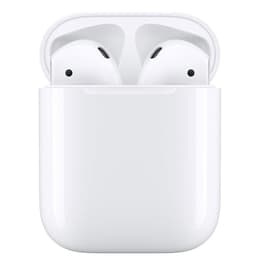
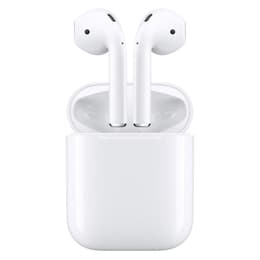
AirPods aren't exactly budget-friendly, and no matter how careful you are, losing one at some point feels almost inevitable. These tiny earbuds have a way of disappearing into couch cushions, slipping under furniture, or even becoming an unexpected toy for a curious pet. Tracking down something that small can quickly turn into a frustrating search. The good news? Your AirPods come with a built-in safety net. Apple's Find My, available on iPhone, iPad, and Mac, can help you locate them by playing a sound, making it much easier to track down a misplaced earbud around the home. But what happens when your AirPod battery is dead? Keep reading to learn how to find a lost AirPod in every situation.
TL; DR
✨If you've lost your AirPods, use the Find My app to check their last known location, play a sound if they're nearby and charged, or enable Lost Mode to help recover them. Even if they're lost offline or dead, retracing your steps from the last known location can help you find them. To avoid losing them again, turn on separation alerts. And if you only lose one AirPod, you can replace it through Apple or through more affordable refurbished options.
Why can you trust this troubleshooting guide?
At Back Market, we focus on making tech simple, practical, and accessible, especially when it comes to getting the most out of devices you already own. This guide on how to find a lost AirPod is built on real-world use, combining Apple's official tools with everyday tips that actually work. Whether you're dealing with a misplaced earbud or a dead set of AirPods, our goal is to give you clear, reliable directions you can follow with confidence.
How to find lost AirPods — A summary
Use the Find My app on your iPhone, iPad, or Mac to locate lost AirPods in a range of situations, whether they're in their case, nearby, out of their case but with battery life, or with a dead battery. You can view their last known location on the map so you can retrace your steps, or use the Play Sound feature to help pinpoint their position when they're charged and within range. Together, these tools provide a simple and effective way to track down your missing AirPods.
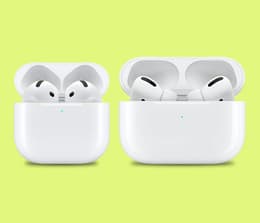
How can you find lost AirPods in their case within Bluetooth range?
✨Use the Find My app to locate your AirPods by checking their last known location, getting directions, and retracing your steps to find them when they're in their case and within Bluetooth range.
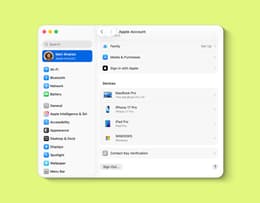
Locate your AirPods from the list of connected Apple devices in the Devices tab.
Success rate: 100%
Use the Find My app on your iPhone, iPad, or Mac to locate lost AirPods that are in their case within Bluetooth range. The app will show you their last known location on a map so you can retrace your steps in order to find your lost AirPods. Here's how you can use the Find My app to locate your lost AirPods:
Step 1: Open the Find My app on your device.
Step 2: Head to the Devices tab and locate your AirPods from the list of connected Apple devices.
Step 3: Tap on your AirPods to see their last known location on a map.
Step 4: Tap Directions to get a route to the last known location of your AirPods.
Step 5: Retrace your steps to find your AirPods.
How do you find lost AirPods that are out of their case, but charged and within Bluetooth range?
✨Use the Find My app's Play Sound feature to make your AirPods emit a sound (left, right, or both) to help you quickly locate them when they're out of the case but still charged.
Success rate: 100%
Use the Play Sound feature in the Find My app to help you locate your AirPods when they're out of the case but still charged. Even with your AirPods out of their case, you can use the Play Sound function to send out a distress signal that will help you find your AirPods. Here's how you can use Play Sound to locate your lost AirPods:
Step 1: Open the Find My app on your device.
Step 2: Head to the Devices tab and locate your AirPods from the list of connected Apple devices.
Step 3: Tap on your AirPods to see their last known location and the Play Sound function.
Step 4: Tap on Play Sound, and your AirPods will play a sound for a few minutes to help you locate them. You'll have the option to play the sound from the right, left, or both earbuds.
Step 5: Once you've located your AirPods, press the stop button to turn off the sound.
What is Precision Finding, and how can I use it to find my AirPods Pro?
✨Precision Finding gives you exact, real-time directions to your AirPods Pro using arrows, distance, and haptic feedback, but it only works on AirPods Pro 2 or 3 with iPhone 11 or newer.
Success rate: 100%
Precision Finding is a more advanced way to locate your AirPods compared to standard Bluetooth tracking. The feature is available in the Find My app and uses Ultra-wideband (U1 or U2) chips to show the device owner the exact distance and direction to their lost AirPods Pro. Precision Finding uses distance estimates, visual arrows, and haptic feedback (vibrations) to provide an AirTag-like experience locating your lost AirPods Pro. This feature is only available on the AirPods Pro 2 and 3 and is supported on the iPhone 11 or later. Here's how you can use Precision Finding to locate your AirPods Pro:
Step 1: Open the Find My app on your device.
Step 2: Head to the Devices tab and locate your AirPods Pro 2 or 3 in the list of connected Apple devices.
Step 3: Tap Find Nearby to open the proximity screen.
Step 4: Follow the directional arrows and distance indicators on the screen to find your lost earbuds. As you move closer, your iPhone provides haptic feedback, and the screen turns green to help pinpoint the exact location of your earbuds.
How can you find one lost AirPod, or both in different locations?
✨Use the Find My app to locate one or both AirPods by checking their last known location on the map and retracing your steps, especially since the Play Sound feature won't work when only one earbud is missing.
Success rate: 75%
Use the Find My app to locate a single lost AirPod, or both AirPods if they're in two different locations. With just one earbud missing, the Find My app won't let you use the Play Sound feature. However, the Find My app still lets you see the last known location on the map, so you can retrace your steps to locate your AirPods. Here's how you can use Find My to locate lost AirPods if just one is missing or they're in different locations:
Step 1: Open the Find My app on your device.
Step 2: Head to the Devices tab and locate your AirPods in the list of connected Apple devices.
Step 3: Tap on your AirPods to see their last known location on a map. When you check your AirPods on the map, it will typically show the location of just one of the earbuds first.
Step 4: Tap Directions to get a route to the last known location of your earbud. Retrace your steps to find your AirPod.
Step 5: Once you've located the first AirPod, place it in the case and then refresh the map to see the updated location of the second earbud.
Step 6: Tap Directions and follow the map to the location of your next earbud.
How can you find lost AirPods with a dead battery?
✨Use the Find My app to view your AirPods' last location before they ran out of battery, get directions to that spot, and retrace your steps to help locate them even when they're offline.
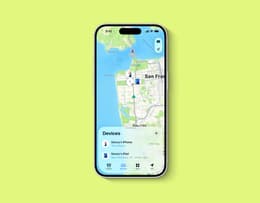
Tap Directions to get a route to the last known location of your AirPods.
Success rate: 50%
Use the Find My app to view the last location of your AirPods before they ran out of battery. Tap Directions to open Maps and get directions to their location. Here's how you can use Find My to locate lost AirPods with a dead battery:
Step 1: Open the Find My app on your device.
Step 2: Head to the Devices tab and locate your AirPods in the list of connected Apple devices.
Step 3: Tap on your AirPods to see their last known location on the map. Even if your AirPods are currently out of battery or out of range, you'll still be able to see their last known location.
Step 4: Tap Directions to get a route to the last known location of your AirPods. While this might not be your earbuds' current location, it will still give you a good idea of where to start your search.
Step 5: Retrace your steps to find your AirPods.
How can you find a lost AirPods case?
✨You can locate a lost AirPods case using Play Sound or Find Nearby in the Find My app, but advanced precision tracking only works for AirPods Pro models (second-generation or newer).
Success rate: 100%
Use the Play Sound or Find Nearby feature in the Find My app to locate your lost AirPods case. When you aren't sure where you left your AirPods case, open the Find My app to view its current or last known location, and use the Play Sound or Find Nearby feature to easily locate it. You can track the AirPods case for the AirPods 4 (ANC), AirPods Pro 2, and AirPods Pro 3, but only the Pro models support Find Nearby as they offer Precision Finding. Here's how you can use Find My to locate a lost AirPods case:
Step 1: Open the Find My app on your device.
Step 2: Head to the Devices tab and locate your AirPods from the list of connected devices.
Step 3: Tap your AirPods case to see their current or last known location (depending on whether they're still connected to Bluetooth).
Step 4: If they're nearby and connected to Bluetooth, tap on Play Sound, and your case will play a sound for a few minutes to help you locate it. For the AirPods Pro 2 and 3, you can also tap Find Nearby to use precision finding, which uses directional arrows and haptic feedback to guide you to the case. What if the case is not nearby? Tap Directions to get a route to the last known location of your AirPods case.
Step 5: At the location, if they get reconnected to Bluetooth, use Play Sound or Find Nearby to locate your case. Otherwise, retrace your steps to find your lost AirPods case.
If you've lost the case for older AirPods, Find My can't track it on its own. Your best bet is to retrace your steps and hope your AirPods case is still in the same spot where you dropped it. The success rate for this method is less than 50%.
Why are my AirPods showing the wrong location?
✨The Find My app usually shows your AirPods' last known Bluetooth location, not their real-time position, especially if they're offline or out of range.
The Find My app shows the last location where your AirPods were connected to Bluetooth, not their current location. Since AirPods rely on Bluetooth connections rather than built-in GPS, the location you usually see is often the last known location, not a live one. If your AirPods are out of range, inside the case, powered off, or far from any Apple device, their location may not update and will often appear inaccurate or outdated. Here are some ways you can fix your AirPods if they're showing the wrong location:
Refresh Find My: Open the Find My app and check for updated location data, or toggle Bluetooth off and back on to refresh the connection between your device and AirPods. This can help resolve temporary syncing issues.
Force restart your AirPods: Place the AirPods in their case, close the cover, wait about 30 seconds to one minute, then reopen the case near your iPhone. This simple reset can fix minor connection glitches.
Re-pair your AirPods: Go to Bluetooth settings, select your AirPods, tap Forget This Device, then reconnect them. This creates a fresh connection and can fix location mismatches.
Check the Find My network: Ensure Find My network is enabled in your AirPods settings so they can update their location using nearby Apple devices.
Factory reset your AirPods: If the wrong location issue persists even after trying the above fixes, perform a full factory reset. Place your AirPods in the case, wait about 30 seconds, then press and hold the setup button until the light flashes amber and white. This should clear any deep software errors.
What is Lost Mode, and how can you use it to find lost AirPods?
✨Use Lost Mode in the Find My app to mark your AirPods as lost, add a contact message, and help track and protect them if someone finds them.
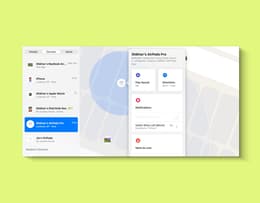
Tap your AirPods, then swipe up to view more details. You will see an option to Mark as Lost.
Success rate: Less than 50%
Lost Mode is a feature of Apple's Find My app that helps you track and protect a missing device, such as an iPhone, a Mac, or AirPods. It lets you mark your device as lost, making it harder for anyone else to use it, and allows you to display a custom message, such as contact information or a request to return the device. The Lost Mode method will only work for AirPods (3rd gen), AirPods Pro, AirPods Max, and AirPods 4 with Active Noise Cancelation (ANC). For the AirPods 4 (ANC), AirPods Pro 2, and AirPods Pro 3, you can mark each earbud and the charging case separately as lost, which is handy if they'reseparated. Here's how you can activate Lost Mode and use it to find your lost AirPods:
Step 1: Open Find My on your device.
Step 2: Head to the Devices tab and locate your AirPods in the list of connected Apple devices.
Step 3: Tap your AirPods, then swipe up to view more details. You will see an option to Mark as Lost.
Step 4: Tap "Activate" below "Mark as Lost." A screen will appear showing the details for Lost Mode.
Step 5: On the "Leave a Message" page, tap "Continue" at the bottom, and provide a custom message or phone number someone can use to contact you if they find your AirPods.
Step 6: Confirm all details are correct, tap "Next", then tap "Activate" to activate Lost Mode.
How do I set up separation alerts to avoid losing my AirPods?
✨Separation alerts notify you when you leave your AirPods behind, helping you avoid losing them by warning you before they get too far away.
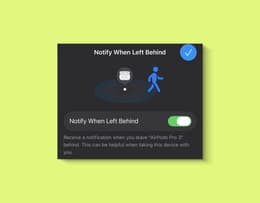
Tap your AirPods, then swipe up to view more details. You will see an option for Notify When Left Behind.
Success rate: 100%
Separation alerts are a feature of Apple's Find My app that notifies you when you leave a connected device behind. These alerts help prevent loss by warning you before your device gets too far away. You can turn on separation alerts for AirPods 3, AirPods 4 (ANC), AirPods Pro, and AirPods Max. Additionally, to receive separation alerts, make sure you allow notifications from the Find My app in your settings. Here's how you can turn on separation alerts to avoid losing your AirPods:
Step 1: Open the Find My app on your device.
Step 2: Head to the Devices tab and locate your AirPods in the list of connected Apple devices.
Step 3: Tap your AirPods, then swipe up to view more details. You will see an option for Notify When Left Behind.
Step 4: Tap the "Notify When Left Behind" option to open its page, then turn it on. Now you'll be notified every time you leave your AirPods behind.
If there are places where you don't want to be notified if you've left your earbuds behind, like in your home or at your office, you can set them as trusted locations. Here's how you can do that:
Step 1: On the "Notify When Left Behind" page, go to the "Notify Me, Except At" section and tap New Location.
Step 2: Enter an address you trust your device to be left at, then set the size of the geographic area for the trusted location. Choose from the options at the bottom of the screen; "Small" is the recommended option.
Step 3: Once you've made your selection, tap Done, and you're all set.
Can I get a single AirPod replacement?
Yes, it's possible to replace a single lost AirPod, but the best option for that depends on what matters most to you. If you want an official replacement, Apple is the best option, but it's also usually the most expensive. If you're looking for a cheaper alternative, third-party sellers may offer single AirPods, although quality and reliability can vary. If you want the best balance of price, quality, and peace of mind, a certified refurbished replacement from Back Market is the strongest choice.
At Back Market, every device is professionally tested and restored to full working condition. You also get a 1-year warranty and a 30-day return period for added confidence. On top of that, you can save 20-50% compared to buying new. In short, if Apple is too expensive and third-party options feel risky, Back Market offers a reliable middle ground that delivers quality without the premium price.
Why should I buy refurbished?
Buying a refurbished device means getting a pre-owned device that's been professionally restored to full working condition. At Back Market, every device undergoes rigorous testing, repairs (if needed), data wiping, and quality checks by certified refurbishers to ensure it meets high-performance standards. This is part of the Back Market Promise, which focuses on reliable quality, transparent grading, and a worry-free experience. Plus, every purchase comes with a 1-year warranty and a 30-day return period for your peace of mind. The best part? Refurbished devices are available at 20-50% off the price of new, making them a smart way to save without sacrificing performance. And beyond price, they're a more sustainable choice. Extending the life of electronics helps reduce e-waste and cuts down on the environmental impact of manufacturing new devices. In the end, choosing Back Market means making a decision that's better for both your wallet and the planet.
Trade in your old tech for cash
Got old tech that's just collecting dust? Trade it in at Back Market and get cash back. Whether it's a smartphone, laptop, or accessory you no longer use, you can get a competitive offer in just a few steps. Start by filling out an online assessment to tell us about your device's condition and get an instant offer. Ship the device to us for free, and once it's verified, you get paid. It's a simple way to clear out clutter, earn money, and give your devices a second life through refurbishment rather than letting them go to waste.
Find the right AirPods for your budget
Model | Back Market price | Price of new | Savings |
|---|---|---|---|
AirPods 3(2021) | From $45* | $179* | 84%* |
AirPods 4(2024) | From $96* | $129* | 21%* |
AirPods 4 (ANC) (2024) | From $96* | $179* | 55%* |
From $135* | $269.99* | 50%* | |
From $180* | $249* | 27.71%* |
*Back Market prices taken at the date of publication — these are subject to change.
From lost to found — How to find AirPods lost offline
Finding a lost AirPod can feel difficult and frustrating, but with the right tools in the Find My app, it's often easier than it seems. From checking the last known location on the map to using Play Sound or enabling Lost Mode, there are several effective ways to track down your missing earbud in different situations. Even if your AirPods are offline or out of battery, retracing your steps can still make all the difference.
To help prevent future loss, you can also turn on separation alerts, which notify you when you leave your AirPods behind. And if you lose one earbud, it's good to know that you don't always need to replace the entire set; single AirPod replacements are available at Back Market.
Once you've recovered your AirPods, or if you're trying to avoid losing them again, it's worth keeping a few simple AirPod maintenance habits in mind, like regularly charging them and storing them properly in the case. And if you're thinking about upgrading, it can also help to compare different AirPod models to find the one that best fits your needs. All in all, knowing how to use Apple's built-in tracking features gives you the best chance of quickly reuniting with your AirPods.